

The short answer: reliable swipe controls in Unity come from treating a swipe as a complete gesture—not as continuous movement. Record where the press begins, measure the final displacement when it ends, reject movements below a screen-relative threshold, translate the accepted gesture into one clear gameplay command, and ignore new input until that command finishes.
This sounds simple, but mobile controls often fail in the details. A fixed pixel threshold feels different across phones. An isometric camera makes “up” ambiguous. A long drag can accidentally trigger several moves. UI buttons compete with the play area. And a control scheme that feels perfect with a mouse can become frustrating under a thumb.
Start with player intent, not raw touch data
A touch position is only sensor data. The game should receive an intention such as MoveNorth, MoveEast, or Select. Keeping those layers separate makes the gesture reader easier to tune and prevents board logic from becoming dependent on one device.
Unity’s current mobile input documentation recommends the newer Input System package for new projects rather than the legacy Input Manager. Its touch support guide explains that touch can be read through Actions and pointer controls. Binding to <Pointer>/press and <Pointer>/position is useful because the same action setup can accept a primary touch on a phone and a mouse in the Editor.
The architecture should still have two separate steps:
- Gesture recognition: turn press, position, and release into a normalized screen direction.
- Game mapping: turn that screen direction into the correct move for the current camera and board.
Use a screen-relative swipe threshold
A hard-coded threshold such as 50 pixels is not portable. Fifty pixels can represent a tiny movement on one display and a large movement on another. Instead, calculate the minimum swipe distance from the shorter screen dimension. A starting value around 6–10% is easy to tune, but the correct number depends on your game, audience, and input pace.
Using the shorter dimension also behaves consistently when the aspect ratio changes. Keep the value exposed in the Inspector, then test it on the smallest and largest screens you support. Do not rely only on reported DPI: some devices report inaccurate values or none at all.
A concise Input System example
using System;
using UnityEngine;
using UnityEngine.InputSystem;

public sealed class SwipeReader : MonoBehaviour
{
    [SerializeField] private InputActionReference press;
    [SerializeField] private InputActionReference position;
    [SerializeField, Range(0.03f, 0.2f)]
    private float minimumScreenFraction = 0.08f;

    public event Action<Vector2> SwipeCompleted;

    private Vector2 startPosition;
    private bool tracking;

    private void OnEnable()
    {
        press.action.Enable();
        position.action.Enable();
    }

    private void OnDisable()
    {
        press.action.Disable();
        position.action.Disable();
    }

    private void Update()
    {
        if (press.action.WasPressedThisFrame())
        {
            startPosition = position.action.ReadValue<Vector2>();
            tracking = true;
        }

        if (!tracking || !press.action.WasReleasedThisFrame())
            return;

        tracking = false;

        Vector2 endPosition = position.action.ReadValue<Vector2>();
        Vector2 delta = endPosition - startPosition;
        float minimumDistance =
            Mathf.Min(Screen.width, Screen.height)
            * minimumScreenFraction;

        if (delta.magnitude < minimumDistance)
            return; // Treat it as a tap or an incomplete gesture.

        SwipeCompleted?.Invoke(delta.normalized);
    }
}
Configure press as a Button action and position as a Vector2 action. The Input System action documentation supports both polling and event-driven responses; this example polls the two transition frames because the entire gesture is compact and easy to inspect.
The reader deliberately does not decide what “up” means. It emits a normalized screen vector and lets a separate board or movement controller interpret it.
Map the swipe to what the player sees
For a top-down game, comparing the absolute X and Y values may be enough. If horizontal magnitude is greater, choose left or right; otherwise choose up or down. An isometric board needs more care because its playable axes may appear diagonal on the screen.
A robust solution is to project each valid world-grid direction into screen space with Camera.WorldToScreenPoint. Normalize those projected directions, compare each one with the swipe using Vector2.Dot, and choose the direction with the highest result. The mapping then follows the camera automatically instead of relying on a fragile list of reversed axes.
| Approach | Best use | Main risk |
|---|---|---|
| Compare screen X and Y | Fixed top-down camera | Feels wrong after camera rotation |
| Serialized direction table | Several known camera views | Every view must be configured correctly |
| Project grid axes to screen | Isometric or changing cameras | Requires a clear board-space basis |
Whichever approach you use, draw the interpreted direction in a development build. A line from the touch start to end plus the chosen board arrow makes incorrect mappings obvious within seconds.
One swipe should create exactly one move
Grid games feel unfair when a single drag produces two steps or when input is accepted during a rolling animation. Recognize the gesture once on release, send one command, then let the movement system report when it is ready again.
A simple state gate is often enough:
Ready: accept a new gesture;Moving: ignore gameplay swipes while animation or physics completes;Paused: route input only to the interface; andFailed/Complete: reject board movement entirely.
Do not solve this only with a timer if the movement duration can change. Let the movement coroutine, animation event, or state machine release the input lock when the move actually finishes.
Separate swipes from taps and UI
A swipe reader should not steal every touch. If the displacement is below the swipe threshold, pass it to tap handling or ignore it. If the gesture begins over a button, settings panel, or level-complete screen, the UI should own it. Keep interactive controls inside the device’s safe area and avoid making important gameplay gestures start directly against system-gesture edges.
For multi-touch, define a clear rule. A one-finger puzzle can track only the primary pointer and cancel the gesture if another interaction changes the intended control. Predictability is more valuable than accepting every possible finger combination.
Test behavior, not just code
A useful swipe test matrix includes:
- short and long gestures in all four directions;
- slow drags and quick flicks;
- near-diagonal gestures between two valid directions;
- swipes that begin on UI or near screen edges;
- rapid repeated input during movement;
- portrait, landscape, and supported aspect ratios; and
- at least one lower-end Android device and one physical iPhone or iPad.
Log the normalized delta, threshold, selected direction, and rejection reason during development. Remove noisy logging from release builds, but keep the interpretation method testable with ordinary Vector2 inputs.
How Cubus turns swipes into puzzle decisions
In Cubus for Android and iOS, each swipe asks a colored cube to roll across a grid, so an incorrect direction is not a minor camera mistake—it changes the puzzle decision. The control must respect the isometric view, the cube’s rolling duration, and the difference between a deliberate swipe and a tap.
This is also why the gameplay layer should receive a board move rather than raw touch coordinates. As explained in Blekol’s guide to sharing one Unity project between mobile and VR, device input should be a replaceable platform layer. The puzzle rules remain stable while mobile gestures and VR interaction can evolve independently.
Reliable controls rarely come from one clever formula. They come from a short, visible chain: capture, validate, map, lock, execute, and unlock. When every step has one responsibility, players stop noticing the control system and can focus on solving the game. Explore Blekol Games to discover Cubus and the studio’s other mobile and VR projects.
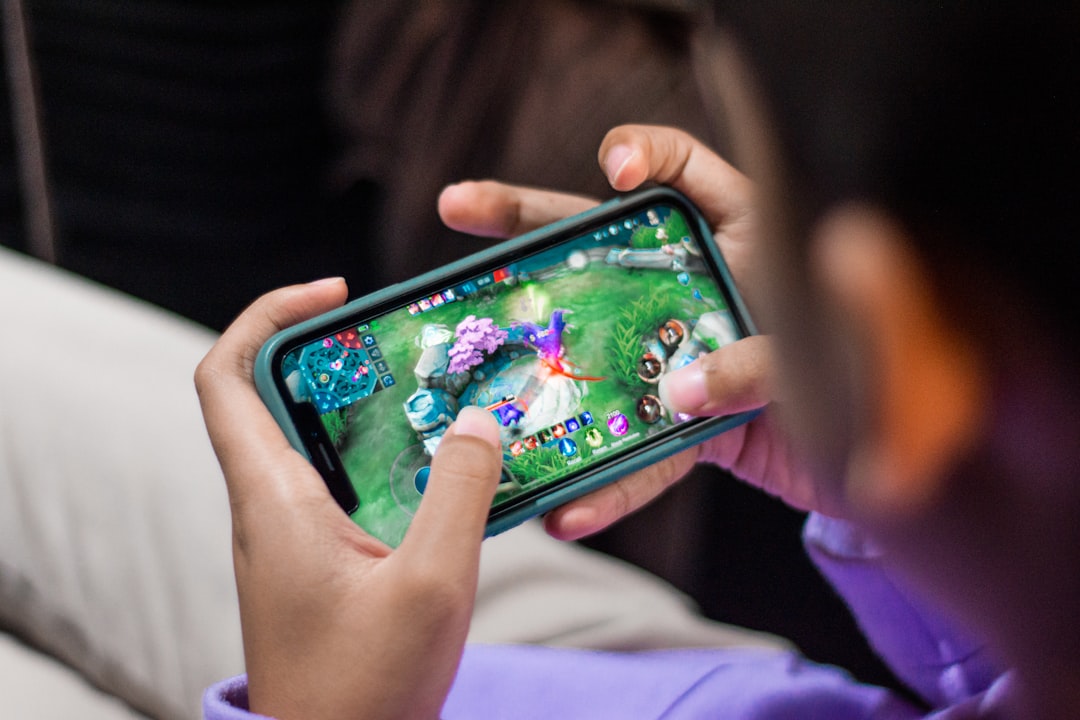
Featured photo by Pandhuya Niking on Unsplash.
Leave a Reply
You must be logged in to post a comment.